 Data 360 Inspector
Features · Query and explore
SQL check
Advice on Data 360 SQL as you type, with fixes.
Video coming soon.
From the article Catch Data Cloud SQL mistakes before you press Run (part 4 of the series).
Most people who write Data Cloud SQL learned SQL somewhere else. I came from Salesforce Marketing Cloud (SFMC), where queries run on SQL Server, so my fingers still type TOP 10, GETDATE() and ISNULL(a, b). Data Cloud SQL is close to PostgreSQL, and it answers those with an error, sometimes after a wait.
Other mistakes give no error at all. WHERE ssot__EmailAddress__c = NULL returns nothing, quietly. A join between an engagement object and Individual without an aggregate first reads every event row.
What it reads, and what it does not
The SQL check works from two things: the SQL text and the list of objects and fields the Inspector has already read from your org. It sends nothing and runs nothing, so it costs no credits and works even when a query would take minutes.
It is advice. A finding never stops a query from running, because the check can be wrong and you know your data better than it does.
In the editor
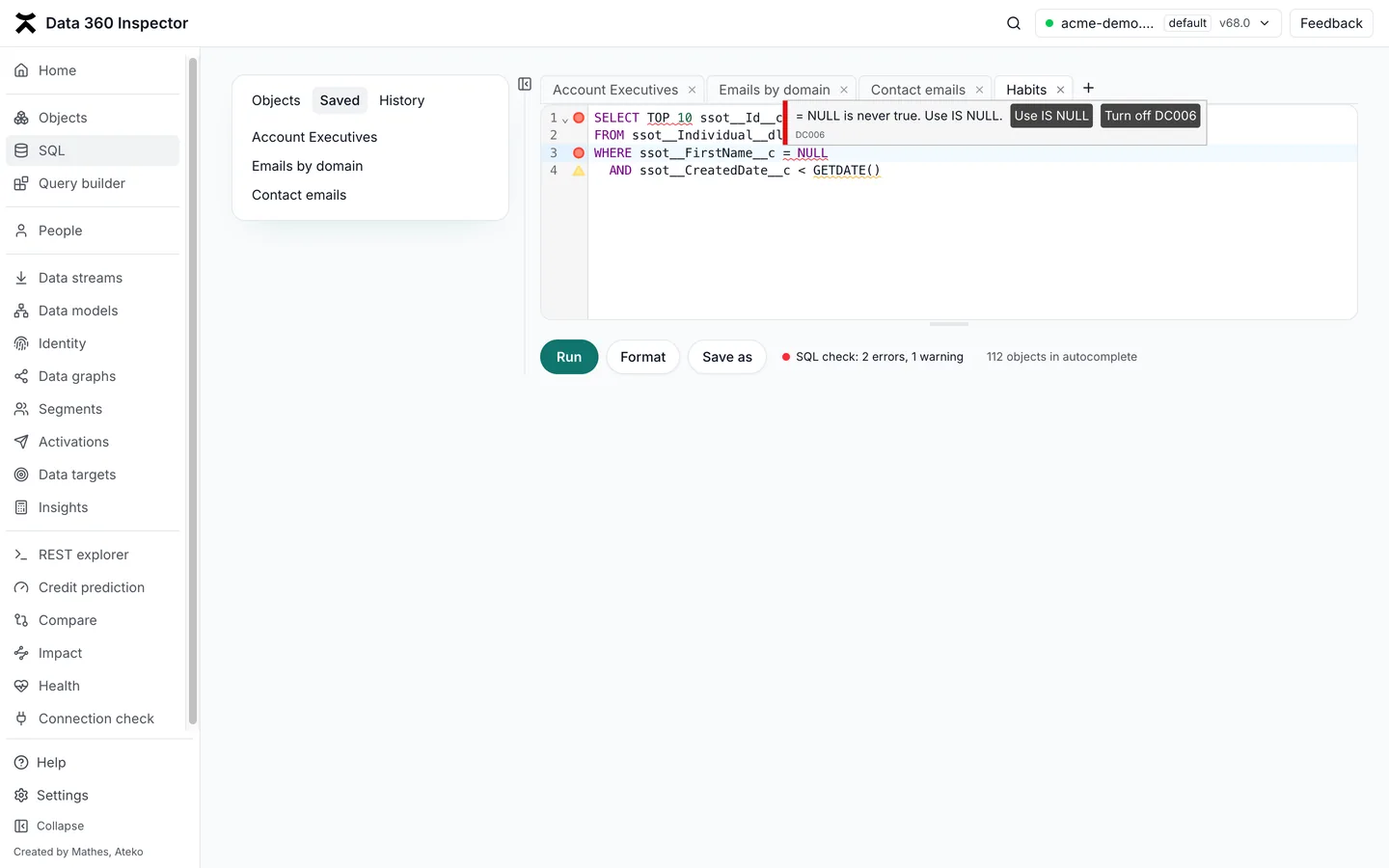
Findings show in the editor the way a code editor shows them: a marker in the gutter and a wavy line under the text. Hover over the line to read the message, the hint and the actions.
Where the change is safe, the first action is a fix, such as Use IS NULL or Use LIMIT 10. The last action is Turn off with the rule's ID, for a rule you do not want to see again.
Under the editor, next to Format and Save as, a small button sums it up, such as "SQL check: 2 errors, 1 warning" or "SQL check: no problems", with a red, yellow or green dot. Click it to open the findings as a list.
The findings list
Each finding in the list has an icon for its severity (error, warning or note), the message and the hint, the line and column, the snippet of SQL it is about and the rule ID. Click the line and column to move the cursor there, and click the fix to apply it.
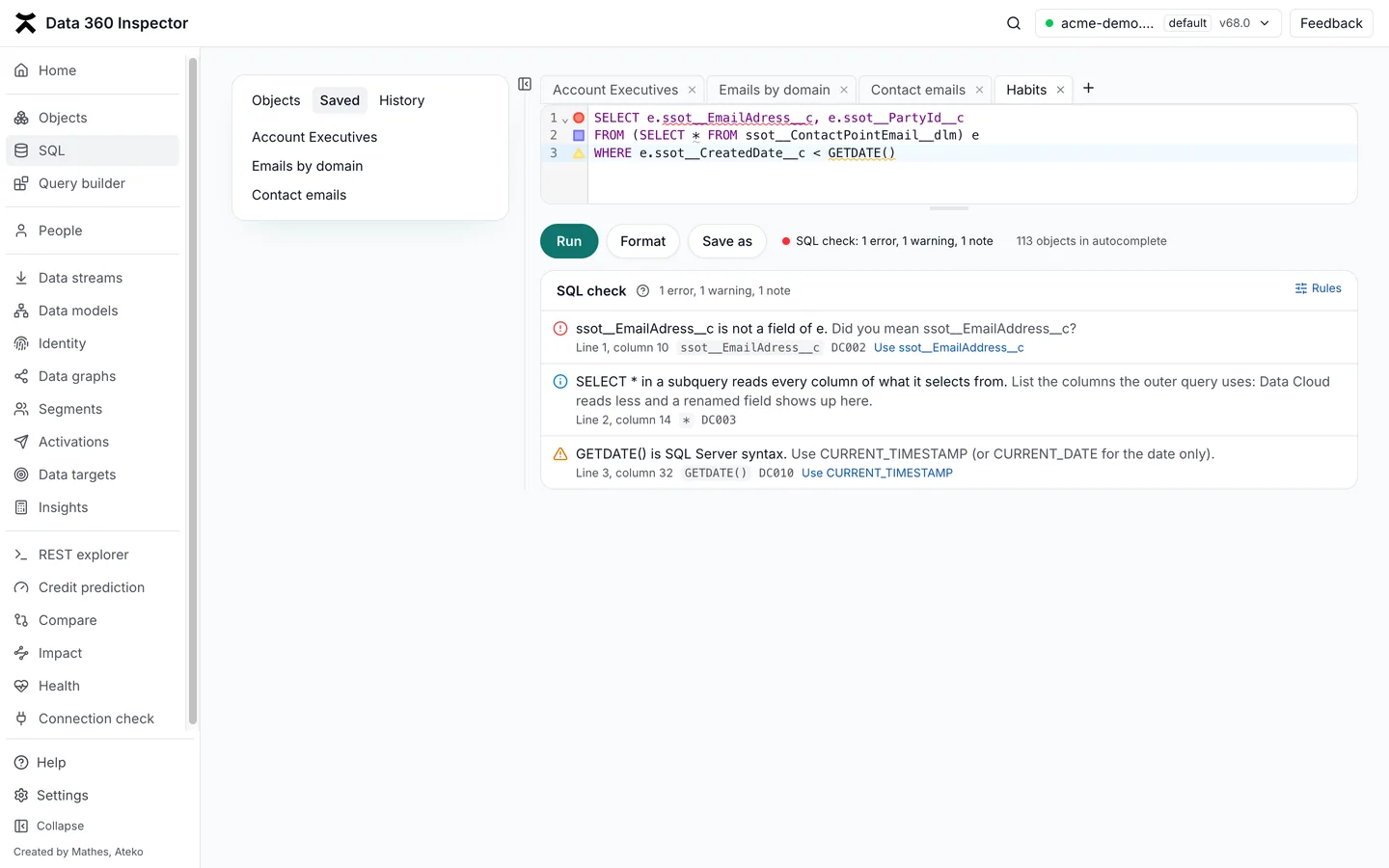
In this query the fields come through a subquery with SELECT *, and the check still knows that e holds the columns of Contact Point Email, so the misspelled name is caught before the query runs. The same goes for a common table expression (WITH ... AS). The SELECT * inside the subquery gets its own note, because Data Cloud reads every column of the object for it.
The check runs again a moment after you stop typing, so the list follows your edits.
What it checks
There are 24 rules, each with an ID from DC001 on. The ones I see most often fall into five groups.
Names come first. DC001 and DC002 flag an object or field that does not exist in this data space, and when a known name is close, they say "Did you mean ...?" and offer to use it. That catches most of my typos in ssot__ names.
Grouping comes next:
- DC004 flags a column that is selected next to an aggregate but is neither in GROUP BY nor inside an aggregate.
- DC005 flags an aggregate in WHERE, with the hint to use HAVING or a subquery.
- DC006 flags
= NULLand<> NULL, which are never true, and offers IS NULL or IS NOT NULL.
Then the habits from other dialects:
- DC007: text in double quotes, which Data Cloud reads as a column name. The fix puts it in single quotes.
- DC009:
TOP n, with the fix Use LIMIT n. - DC010: SQL Server or MySQL functions, with the Data Cloud way to write them:
GETDATE()becomesCURRENT_TIMESTAMP,ISNULL(a, b)becomesCOALESCE(a, b),LEN()becomesLENGTH(), andDATEADDgets a hint to add an interval instead. - DC011: square brackets or backticks around names.
- DC012:
+to join text, with the fix||. - DC008:
UNNEST(SEQUENCE()), which does not work in Data Cloud SQL, withgenerate_series()as the way to do it.
Joins have their own rules. DC013 flags a JOIN without ON, and DC014 a join that compares fields of different types. DC015 is a note when two Data Model Objects (DMOs) are joined on fields that no relationship in your data model links and neither is a primary key, because one row may then match many and multiply your counts.
Last, cost. Engagement objects keep every event, so DC018 warns when one is read without a date filter, DC016 notes when one is joined row by row and then aggregated (aggregate it in a subquery first), and DC017 notes a COUNT(DISTINCT) over one. These do not make a query wrong, but they make it slower and, on a busy org, more expensive.
When a query fails anyway
When a run fails, the error box shows Data Cloud's message and, under "The SQL check found", the findings for the SQL that ran. Often the finding is the explanation: Data Cloud says unknown column "e"."ssot__EmailAdress__c", and the check says what it probably should be, with a button that puts the right name in.
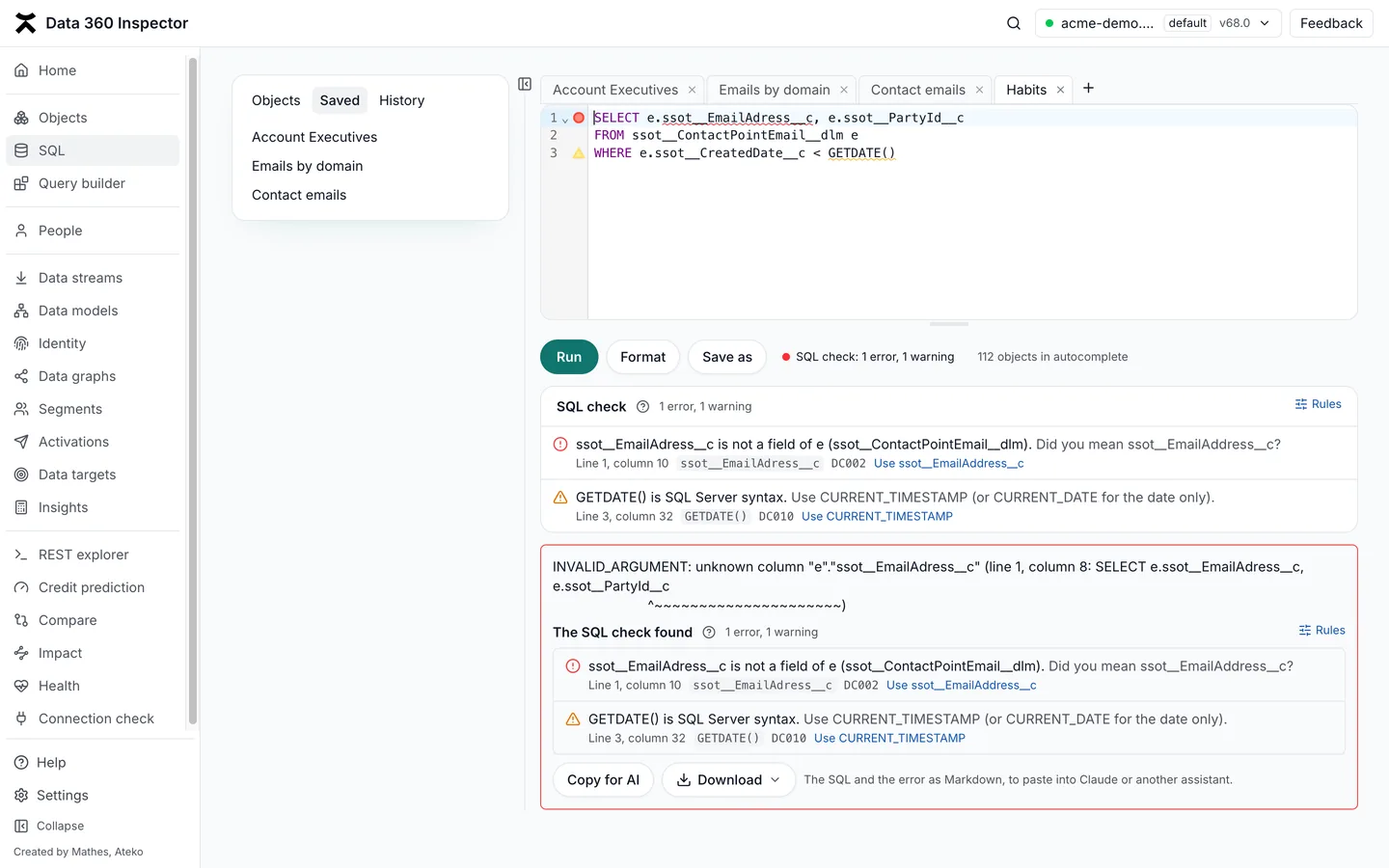
The fixes there work as long as the editor still holds the SQL that ran. Copy for AI includes the findings too, so an assistant sees both Data Cloud's error and the check's reading.
Calculated insights
The same check runs on calculated insights, with six extra rules for what an insight needs: at least one measure (DC020), a dimension (DC021), an aggregate on every measure (DC022), output names ending in __c (DC023), no ORDER BY or LIMIT (DC024), and, as a note, a dimension that ties the insight to a person or an account (DC025). On an insight, SELECT * becomes an error instead of a note.
On the Insights page, the Expression tab of an insight has a SQL check card, and the tab shows the number of errors and warnings. Check all calculated insights on the list runs the check on every insight's SQL that the list has already loaded, without a query. Day 22 shows it in more detail.
Turning rules off
Rules, at the right of the findings list, opens "SQL check rules": every rule with a checkbox, its title (Unknown object, Unknown field, SELECT *, = NULL instead of IS NULL, TOP instead of LIMIT and so on) and its ID. Untick one to turn it off, or use Turn off on a marker in the editor. The button then reads "Rules (1 off)", and Turn all on brings them all back.
Rules you turn off stay off in this browser, on the SQL page and on calculated insights alike. I keep DC003 (SELECT *) on, but I understand anyone who turns it off on day one.
Limits
A few things to know:
- The check reads the SQL without a full parser, so an unusual construct can confuse it. Each rule runs on its own, so one confused rule does not hide the others.
- Unknown object and field findings are only as current as the object list. After adding a field, refresh the list on Objects, or the check will flag the new name.
- It knows the dialect habits I listed, not every function Data Cloud has. A function it does not recognise is not flagged.
- A clean check does not mean the query will run. Data Cloud has the final word.