 Data 360 Inspector
Features · People and identity
Identity
Rulesets in plain words, consolidation rate, and two people side by side.
Video coming soon.
From the article What does this identity resolution ruleset do, in plain words? (part 14 of the series).
"Why are these two people one profile?" and "why are these two not?" are the identity questions I get most in Data Cloud. To answer either one in Setup, you open the ruleset, click into each match rule, open each criterion to see the field and the match method, then go to the reconciliation rules and do the same. Then you still have to find the two records and look at their values side by side, somewhere else.
Every ruleset on one page
Identity in the sidebar lists the identity resolution rulesets of the selected data space on the left, each with its ID, status and last run. Pick one and the page shows, from top to bottom:
- The ruleset's name, description, ID, status, whether it runs automatically or by hand, and whether it is case-sensitive.
- A row of numbers: Source profiles, Unified profiles, Consolidation rate and Last run, plus Matched source profiles, Anonymous unified and Known unified when Data Cloud reports them.
- Match rules and Reconciliation rules, side by side.
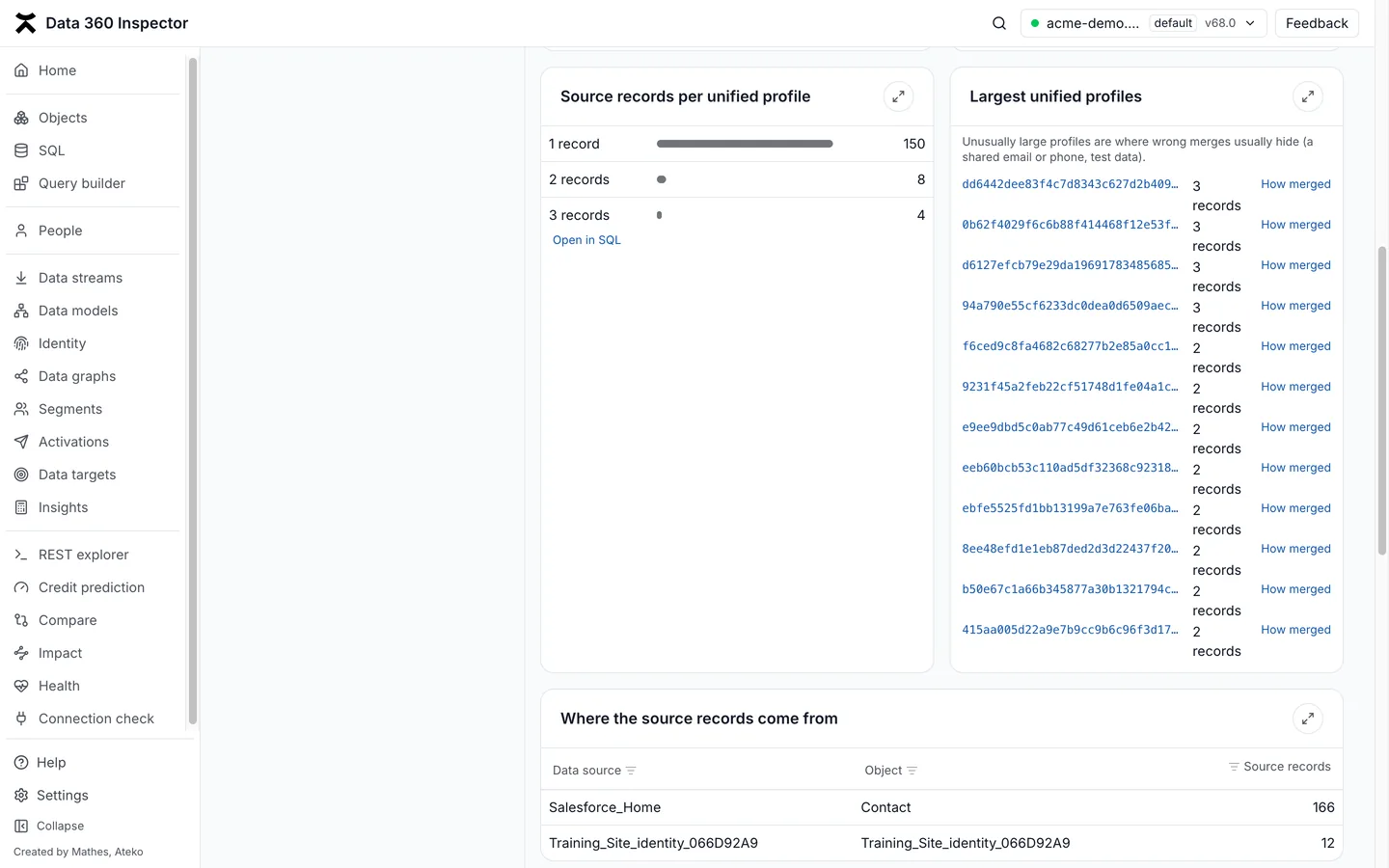
- Source records per unified profile, Largest unified profiles and Where the source records come from.
- Merge health (tomorrow's topic) and Compare people.
The numbers in the top row come from Data Cloud's own statistics for the ruleset, the same call Setup makes, so they need no SQL. Open in Salesforce at the top right takes you to the ruleset's record in Setup when you want to change something.
Match rules in plain words
Each match rule becomes a short list of sentences, one per criterion. The object and field names lose their ssot__ and __c decorations, and the match method is written out:
- Exact becomes "is exactly the same".
- Exact normalized becomes "is the same after normalizing (case, spaces, phone formatting)".
- Fuzzy becomes "is similar (fuzzy)".
A criterion that treats two blank values as a match gets ", blanks match blanks" at the end, because that setting is behind many surprising merges. Above the rules sits the one sentence that explains how they combine: "Two records join when every criterion of any one rule holds."
On my demo org the first ruleset, CC b2c Individual Ruleset for Data Graphs, has one match rule, Fuzzy Name and Normalized Email, in three sentences:
- Individual.FirstName is similar (fuzzy).
- Individual.LastName is exactly the same.
- ContactPointEmail.EmailAddress is the same after normalizing (case, spaces, phone formatting).
Reconciliation rules get the same treatment. Each object says which value the unified profile keeps when the source records disagree: the most recently updated value, the most frequent value, or the value from the highest-priority source. When a rule uses source priority, the order is shown as "Source order: A > B > C", and fields with their own rule are listed under the object.
The consolidation rate and where it comes from
The consolidation rate tells you how much the ruleset merged: the share of source profiles that were folded into another profile. A rate near zero means almost every source record stayed on its own; a high rate means many records were joined. My demo ruleset has 178 source profiles in 162 unified profiles, which the page shows as 9%: 16 records were folded into someone else. Neither is good or bad by itself, which is why the page puts the profile sizes next to it.
Source records per unified profile is a small bar chart: how many unified profiles have one source record, how many have two, and so on. On the demo ruleset it reads 150 profiles with one record, 8 with two and 4 with three. It comes from one SQL query on the ruleset's link object, which pairs every source record with its unified profile, and Open in SQL under the chart runs it on the SQL page.
Largest unified profiles lists the 20 profiles with the most source records. As the card says, unusually large profiles are where wrong merges usually hide: a shared email or phone, or test data. Each one links to the person on People, and How merged opens the merge graph from Day 8 for that profile.
Where the source records come from counts the source records per data source and object, so you can see whether one stream supplies most of the people the ruleset works with. On my demo org that is Salesforce_Home Contact with 166 and the training website's identity stream with 12.
Compare people
The card I use most on this page is Compare people. Pick two source records (up to 10, with Add a person), each found by email, phone, name or ID with Find, and press the button, which counts them: Compare 3 people.
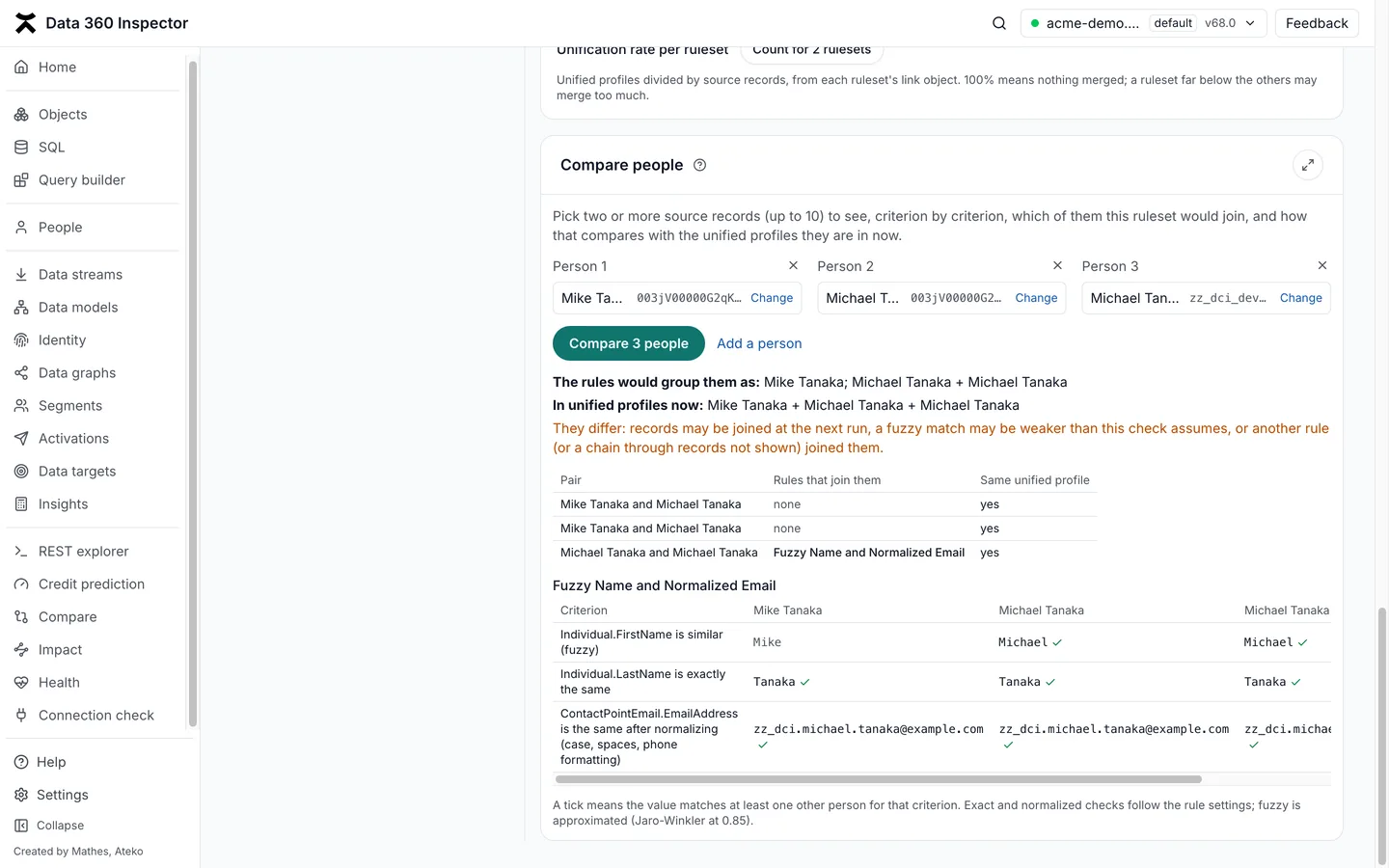
The result has three parts:
- Two lines: how the rules would group the people, and how they are grouped in unified profiles now, followed by "The two agree." or a warning that they differ.
- A pairs table: for each pair, the rules that join them and whether they share a unified profile.
- For each match rule, a table with one row per criterion and one column per person, holding that person's values. A tick marks a value that matches at least one other person for that criterion.
The grouping follows chains. If the rules join A with B and B with C, all three end up in one group, even when A and C share nothing, which is how identity resolution works too.
When the two lines differ, the page lists the usual reasons. The records may be joined at the next run, a fuzzy match may be weaker than this check assumes, or another rule (or a chain through records not shown) joined them. In practice, the per-criterion table usually makes the reason obvious: one phone stored as (415) 555-0100 and another with a country code, or a blank field on both sides with blanks-match-blanks turned on.
The example in the image is the largest profile in my demo ruleset, three source records for one man. Two say Michael Tanaka and one says Mike Tanaka, all with the same email. Data Cloud put all three in one unified profile, but Compare says the rules would join only the two Michaels, and the table shows why: Mike gets no tick under the fuzzy first name criterion. Data Cloud's fuzzy name matching treats Mike as similar to Michael, as a nickname; the Jaro-Winkler check the Inspector uses does not. That is the limit below in a real case, and the warning says as much: "a fuzzy match may be weaker than this check assumes".
Download
Two Download menus sit on the page. The one above the list gives every ruleset with its status, last run and number of match rules. The one next to a ruleset gives its details, its match and reconciliation rules in the same plain words, the profile sizes, the largest profiles and the source counts, as a document or a spreadsheet. I attach that document when a client asks for "the identity rules" in a design review, because it reads the same way the page does.
Limits
A few things to know:
- Compare people decides exact and normalized matches itself, following the rule's settings. Fuzzy matches are approximated with a Jaro-Winkler similarity of 0.85, so a fuzzy criterion can tick here and not match in Data Cloud, or the other way round.
- Compare works on source Individual records and the related objects the rules name (contact points and the like). Values on objects the Inspector cannot reach from Individual through a relationship show as blank.
- The consolidation rate is shown as Data Cloud reports it. Merge health tomorrow computes its own rate from the link object, which can differ.
- Profile sizes, largest profiles and source counts run SQL queries on the link object each time you open a ruleset.