 Data 360 Inspector
Features · People and identity
Merge health
Profile sizes, possible over-merges and unification rate.
Video coming soon.
From the article Is identity resolution merging too much? (part 15 of the series).
Every Data Cloud project I have seen has at least one unified profile that should not exist. It holds hundreds of source records, and when you open it, they share an email like info@ or a call centre phone number that a sales rep typed into every lead. That one profile then shows up in segments, gets the wrong name from reconciliation, and receives emails meant for someone else.
Profile sizes in buckets
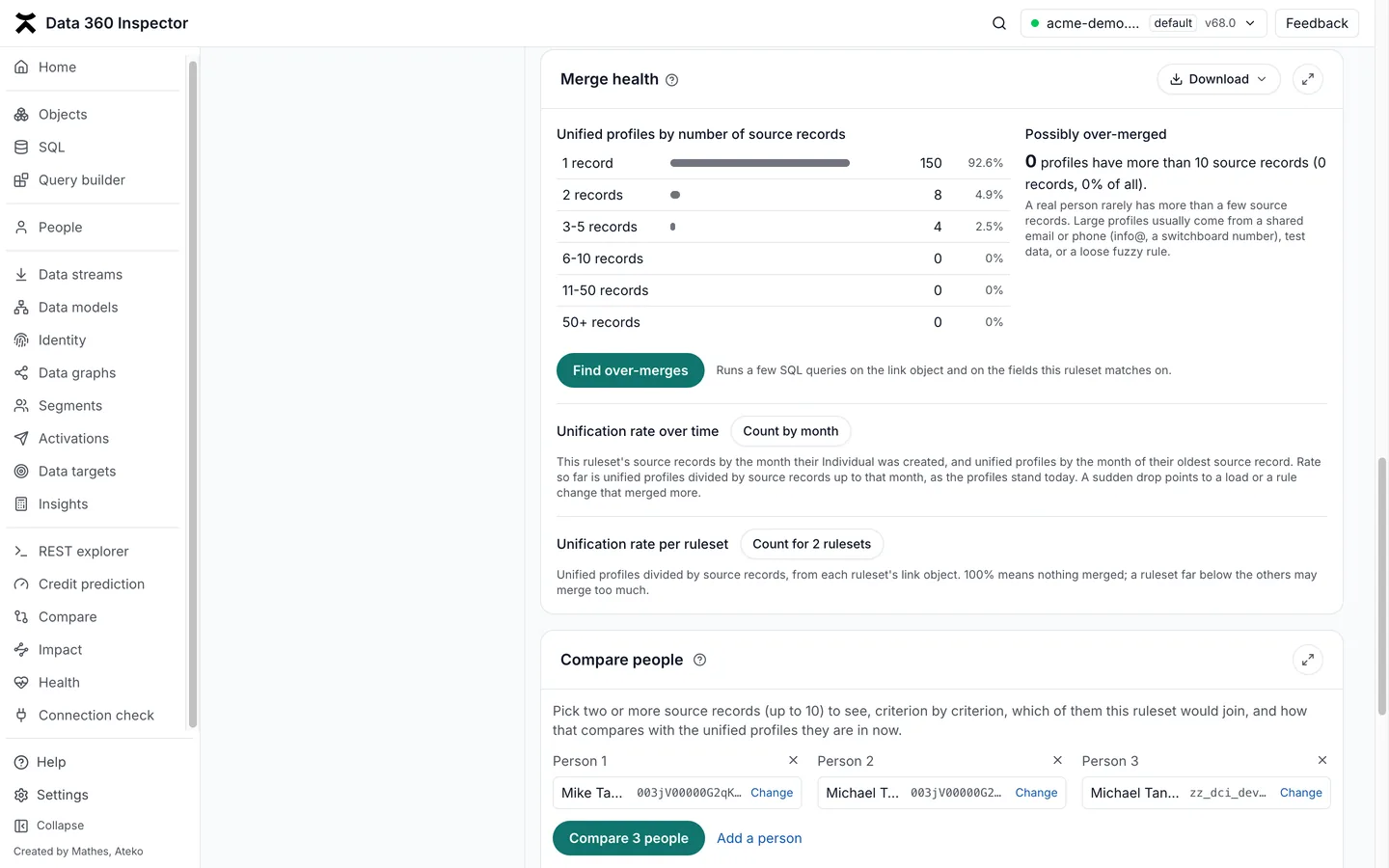
Merge health sits on the Identity page, below Where the source records come from. Its first part needs no extra query: it reuses the profile size counts the page already has and puts them in buckets of 1, 2, 3-5, 6-10, 11-50 and 50+ source records.
For each bucket you see the number of unified profiles and their share of all profiles, with the 11-50 and 50+ bars in amber. Next to it, Possibly over-merged gives the one number I look at first: how many profiles have more than 10 source records, how many records they hold, and what share of all source records that is.
The note under it says why 10 is the line: a real person rarely has more than a few source records. Large profiles usually come from a shared email or phone, test data, or a loose fuzzy rule. On my demo org no profile crosses that line: the largest unified profiles have three source records, so the 11-50 and 50+ bars are empty and nothing is amber. That is what a healthy small ruleset looks like, and it makes the next part more interesting, because a bad shared value can hide even when no profile is large.
Find over-merges
Find over-merges runs a few SQL queries on the ruleset's link object (the table that pairs each source record with its unified profile) and on the fields the ruleset matches on. It fills three lists.
Most merged profiles lists up to 50 unified profiles with two or more source records, largest first, with a "large" badge past 10. Each one opens the person on People with How they were merged already showing, the graph from Day 8, so you can see which pairs matched and why. Open in SQL puts the query on the SQL page.
Match keys recorded most often counts the values of MatchKeys__c on the link object, with how many link rows and profiles each one covers. Salesforce does not document the format of that field, so the page shows it as stored and only counts it.
Match values shared by the most source records is the list that finds the info@ address. For each exact or normalized criterion of the ruleset (an email, a phone, a loyalty ID), it finds the values held by the most source records and counts how many unified profiles those records ended up in.
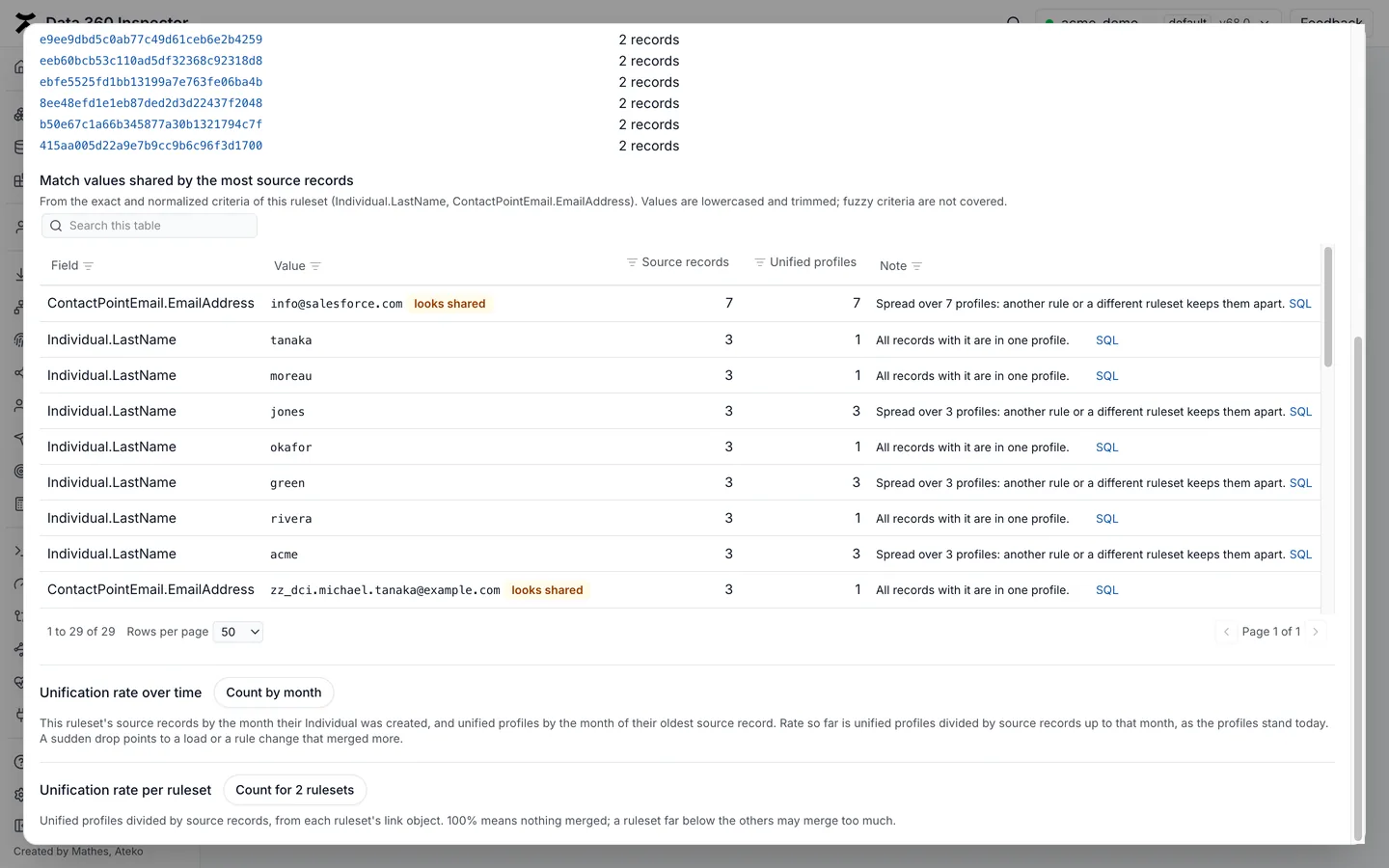
The Note column reads each row for you:
- Many records in one profile: "joined into one profile by this value alone?", the case to check first.
- All records in one profile, but only a few of them: noted, usually a real person with several sources.
- Records spread over several profiles: another rule or a different ruleset keeps them apart.
Values that look like placeholders get a "looks shared" badge. That covers addresses starting with info@, admin@, noreply@, test@, sales@, support@, contact@, office@ or hello@, any address at example or test domains, and values like n/a, none, null, unknown, a run of zeros or 1234567890. Every row has an SQL link that opens its query, so you can list the records behind a value and decide what to do in the source.
On my demo org the top row is info@salesforce.com, held by 7 source records, the sample contacts that came with the org. It has the "looks shared" badge, and the note says the 7 records sit in 7 profiles. The ruleset matches on first name, last name and email together, so a shared address alone does not join anyone, which is the right outcome here. If the rule matched on email alone, those 7 people would be one profile, and this is the row that would show it. The badge also lands on zz_dci.michael.tanaka@example.com, because example.com is one of the test domains; the badge is a hint, not a verdict.
Match keys recorded most often reads "None recorded." on my demo org.
Values are lowercased and trimmed before they are counted. Fuzzy criteria are left out, because a GROUP BY can only find equal values, not similar ones. When a ruleset has no exact or normalized criteria, the page falls back to email and phone contact points.
The unification rate over time
Count by month answers a different question: did something change? It groups this ruleset's source records by the month their Individual record was created, and unified profiles by the month of their oldest source record. For each month you see New source records, New unified profiles, Rate that month and Rate so far (unified profiles divided by source records up to that month), with the last 24 months on screen and all of them in the download.
The page explains the reading in one line: a sudden drop points to a load or a rule change that merged more. It is computed as the profiles stand today, so a merge that happened last week counts in the month the records were created.
Every ruleset side by side
The last part, Count for N rulesets, runs one query per ruleset on its link object and lists Source records, Unified profiles, Unified / source and Folded away. 100% means nothing merged. A ruleset far below the others may merge too much, and that is easier to spot next to its siblings than alone. On my demo org the b2c ruleset reads 178 source records, 162 unified profiles, 91% and 9% folded away, and Test Rule 1 reads 150, 150, 100% and 0%.
Download on the card gives everything you have run so far as a document or a spreadsheet: the buckets, the over-merged summary, the three lists, the rate per ruleset and the months.
Limits
A few things to know:
- The threshold of 10 source records is a rule of thumb, set in code. A B2B org with many contact records per person may cross it legitimately.
- Shared values come only from exact and normalized criteria, and look for contact points by their party ID field (ssot__PartyId__c). A custom contact point object that names the person differently is skipped.
- The rate by month needs a created or last modified date on Individual. Without one, the page says there is nothing to group by.
- Merge health computes its own rate from the link object (unified profiles divided by source records). It can differ from the consolidation rate in the numbers row, which comes from Data Cloud.
- The queries run only when you press a button, but they do run on the full link object, so they use Data Cloud query credits.